Saving
The saving system built into Narrative Pro features a full save and load system to load any actor you require in the game.
The save system has a function UI to allow you to create, save, load and delete save game files.
Get the save system
When you are wanting to save or load, you can get the Narrative Save Subsystem. This gives you access to all the functions you need to handle saving.

Save an actor
To save an actor using Narrative Pro is really easy.
There are two interfaces you can use depending on what you want to save.
Actor interface
If you want to save an actor with specific variables you can use the interface:
Narrative Savable Actor
Now you can populate a few main functions.
The save actor interface will automatically save the actors transform, so you don't need to.
Set Actor GUID
Each savable actor requires a unique ID in order to create this uniqueness. A GUID is a datatype that can give us this randomness.

You will need to create the variable SavedGuid. It can be called anything, but you need to set it from the Event SetActor GUID
Get Actor GUID
Simply returns the GUID created above. Used to find the correct actor to load details into.

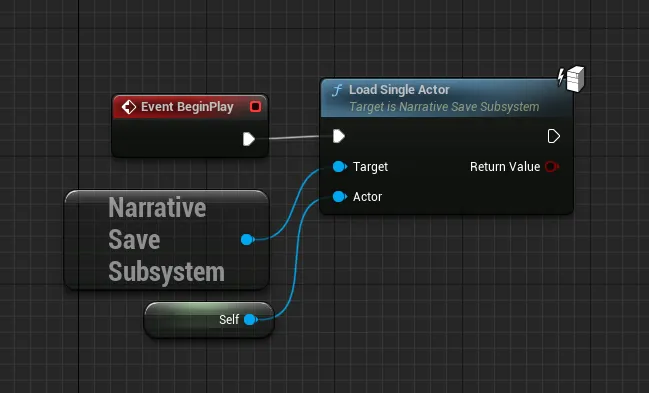
Load Single Actor
The LoadSingleActor function tells the Narrative Save Subsystem to load a specific actors' data. Commonly added to EventBeginPlay.
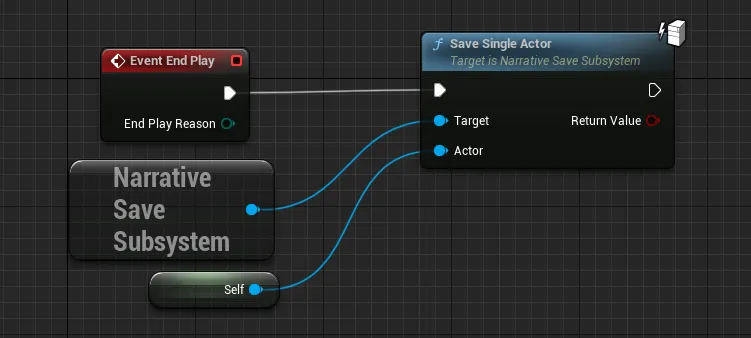
Save Single Actor
The SingleSingleActor function tells the Narrative Save Subsystem to save a specific actors' data. Commonly added to EventEndPlay.
Component interface
If you are wanting to save a component then you can use the:
Narrative Savable Component
Save Game property
Any variable that you want to save you must mark it as SaveGame in the advanced menu.

C++
Plugins/NarrativePro/Source/NarrativeSaveSystem/Private/Subsystems/NarrativeSaveSubsystem.cpp