Player Controller
Before we can move on, we need to create a custom PlayerController.
If you already have a custom PlayerController, you can skip this page.
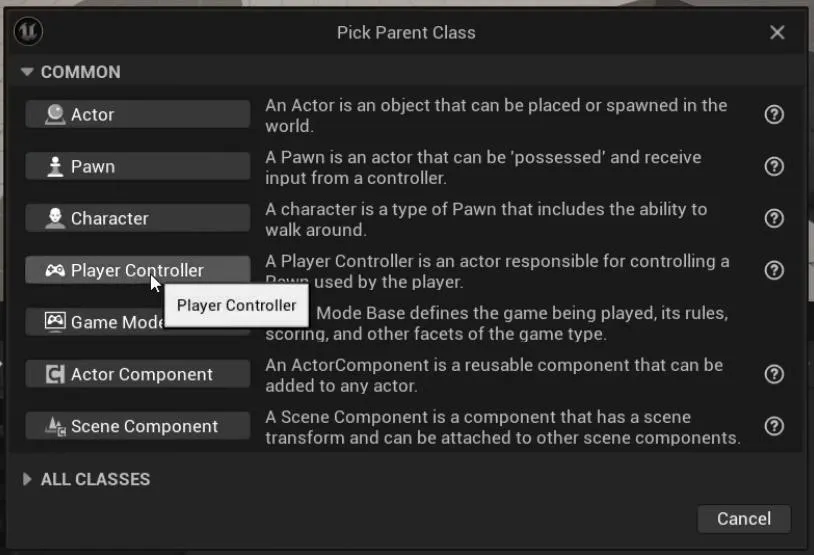
Simply right-click in your Content Drawer, select Blueprint Class and choose Player Controller. We will name this BP_PlayerController.
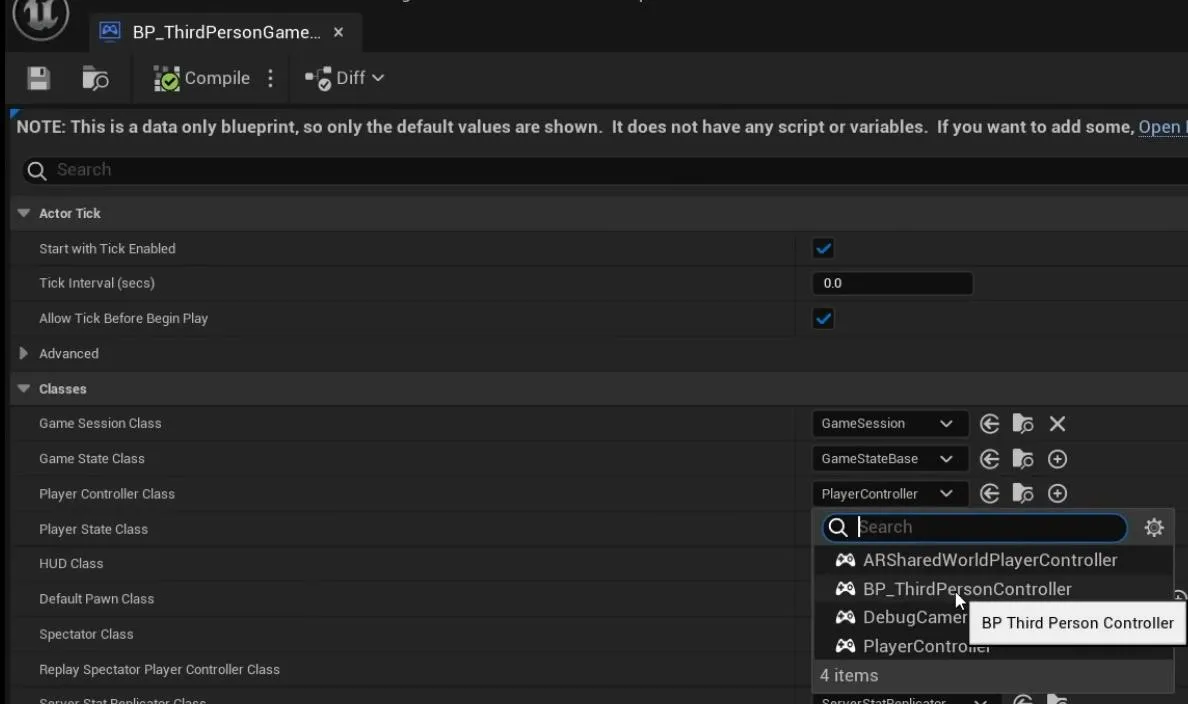
Now open the BP_ThirdPersonGameMode and set the Player Controller class to your newly created BP_PlayerController.
Usage
Add the Narrative Inventory component into your Player Controller.

Now, you just need to get access to your HUD from the CommonUI setup then call OpenMenu from a key press, passing the WBP_Inventory option.
Do not call CreateWidget on this widget. It will bypass the CommonUI framework causing functionality not to work.
Begin Looting
For the looting system to work, you need to hook into the OnBeginLooting event of the Inventory component.
Simply right-click on the inventory component -> Add Event -> OnBeginLooting. Get the players HUD and call Open Menu for the W_NarrativeMenu_Looting widget.